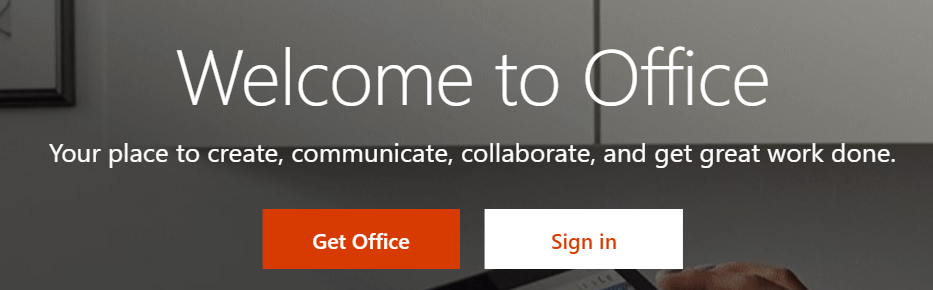
- Logon to Office.com and select Sign in
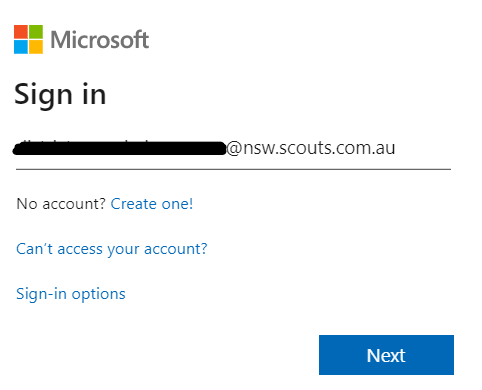
- Enter your email address and press Next
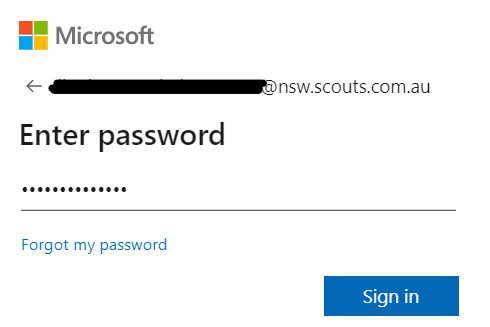
- Enter your password and press Sign in
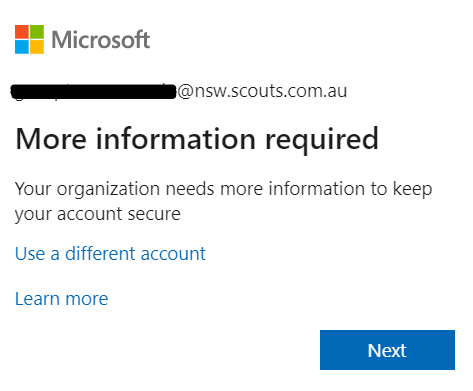
- You will now see this screen, press Next
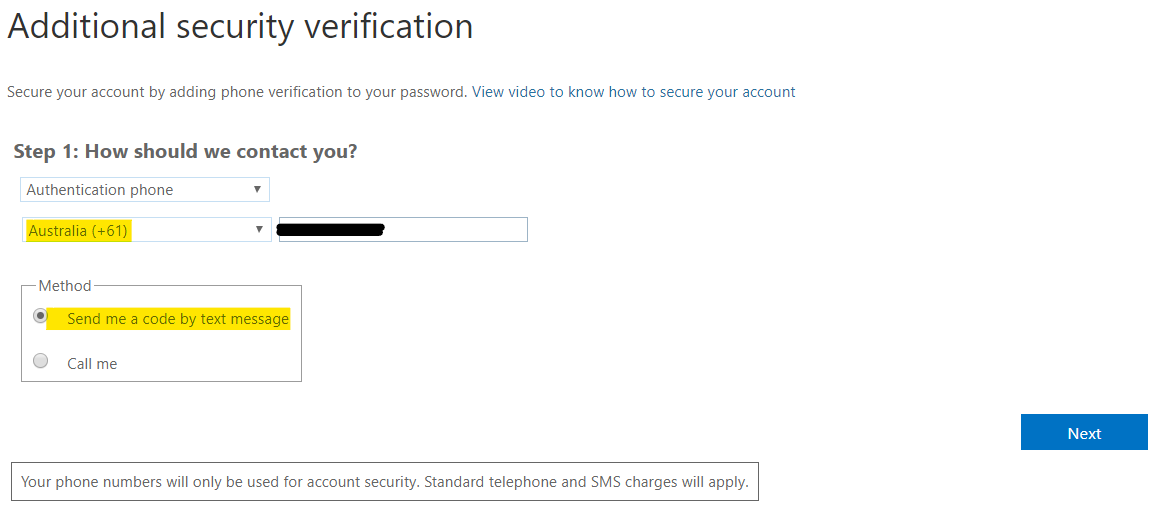
- At this screen
- Select Authentication phone
- Select Australia(+61) from the country list
- Enter your mobile number 04XXAAABBB
- Select send me a code by text message
- Press Next
- The system will send you a text message with a code to your mobile number
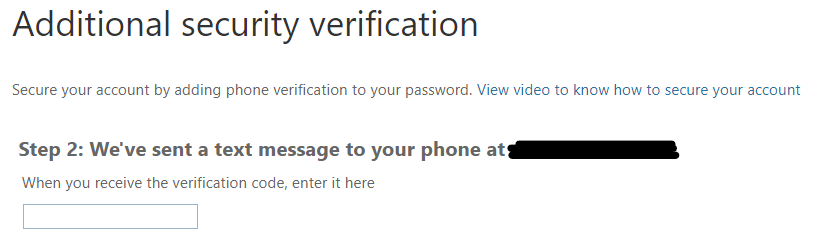
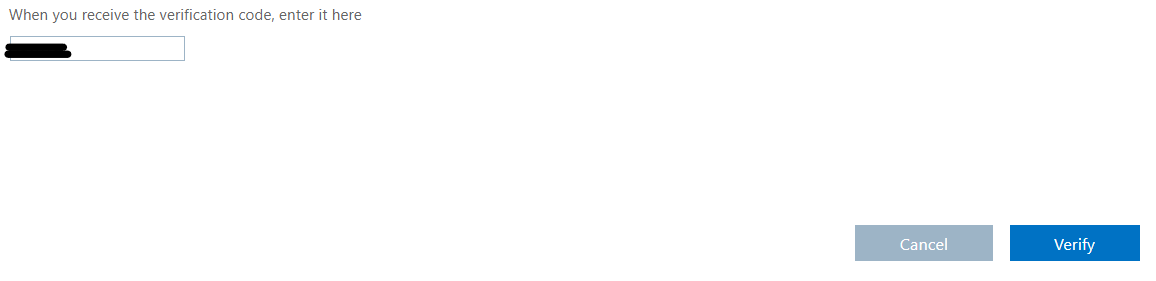
- Enter the code and press Verify
- At this screen, press done.
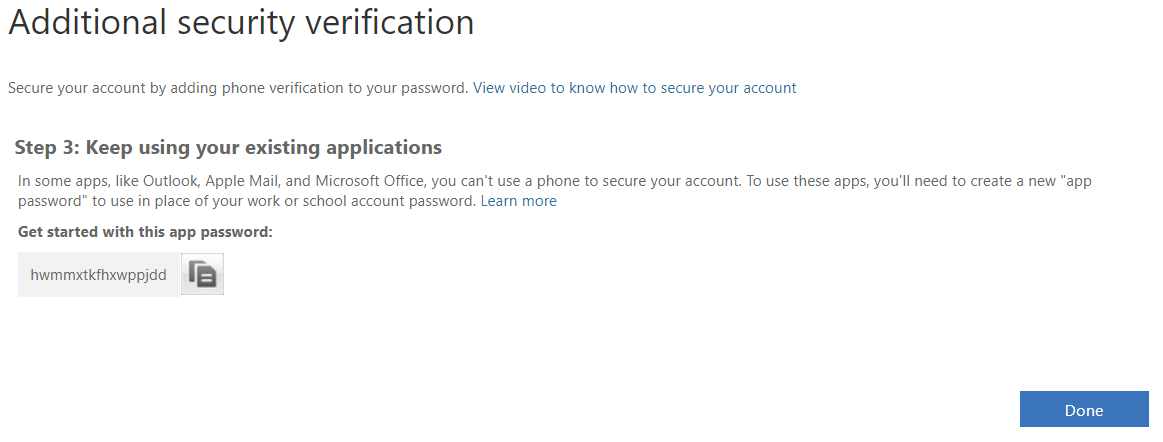
MFA is now set up - Now log into your account with your password and press Sign in
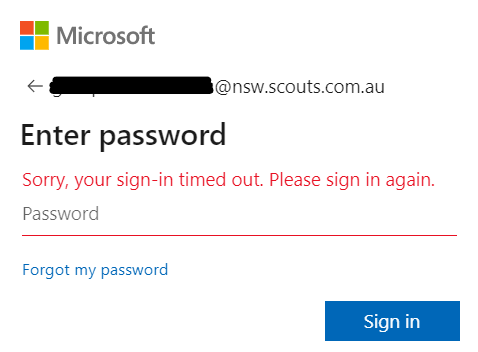
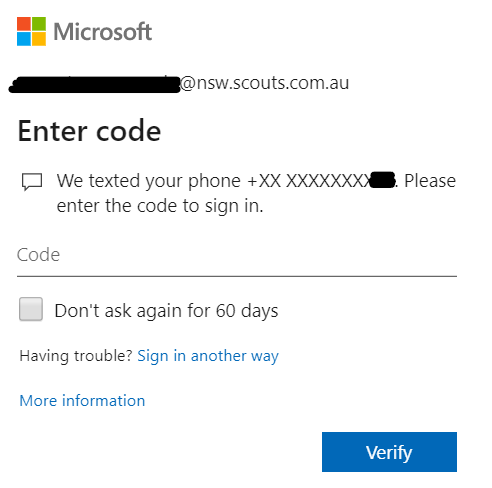
- You will now been shown this screen and a text message will be sent to your phone
- Enter the code
- You can select Don't ask again for 60 days. (This only applies to computer you are logging on to at this time)
- Press Verify
- You are now logged into your Office account.
Should you have any issues, please send an email to helpdesk@nsw.scouts.com.au